Antivirus Quarantine Explained: How Your Security Software Isolates Threats
Quarantine does not delete files; it encrypts and isolates them in a restricted folder, allowing you to recover data if the detection was a false positive.
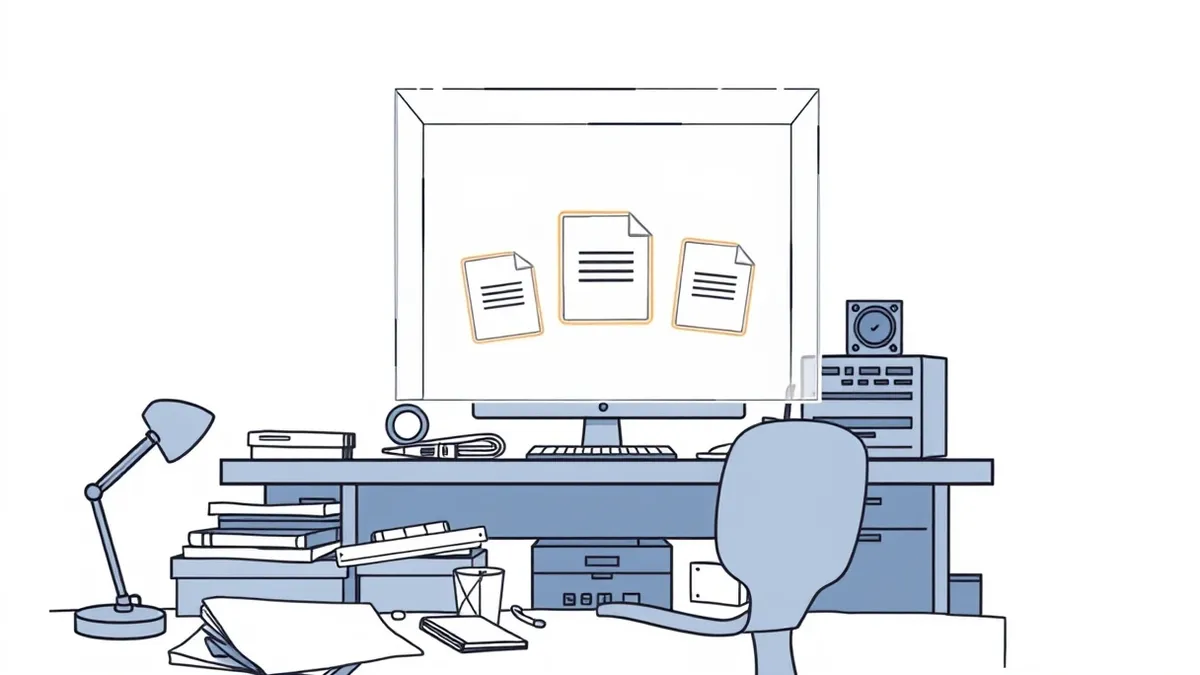
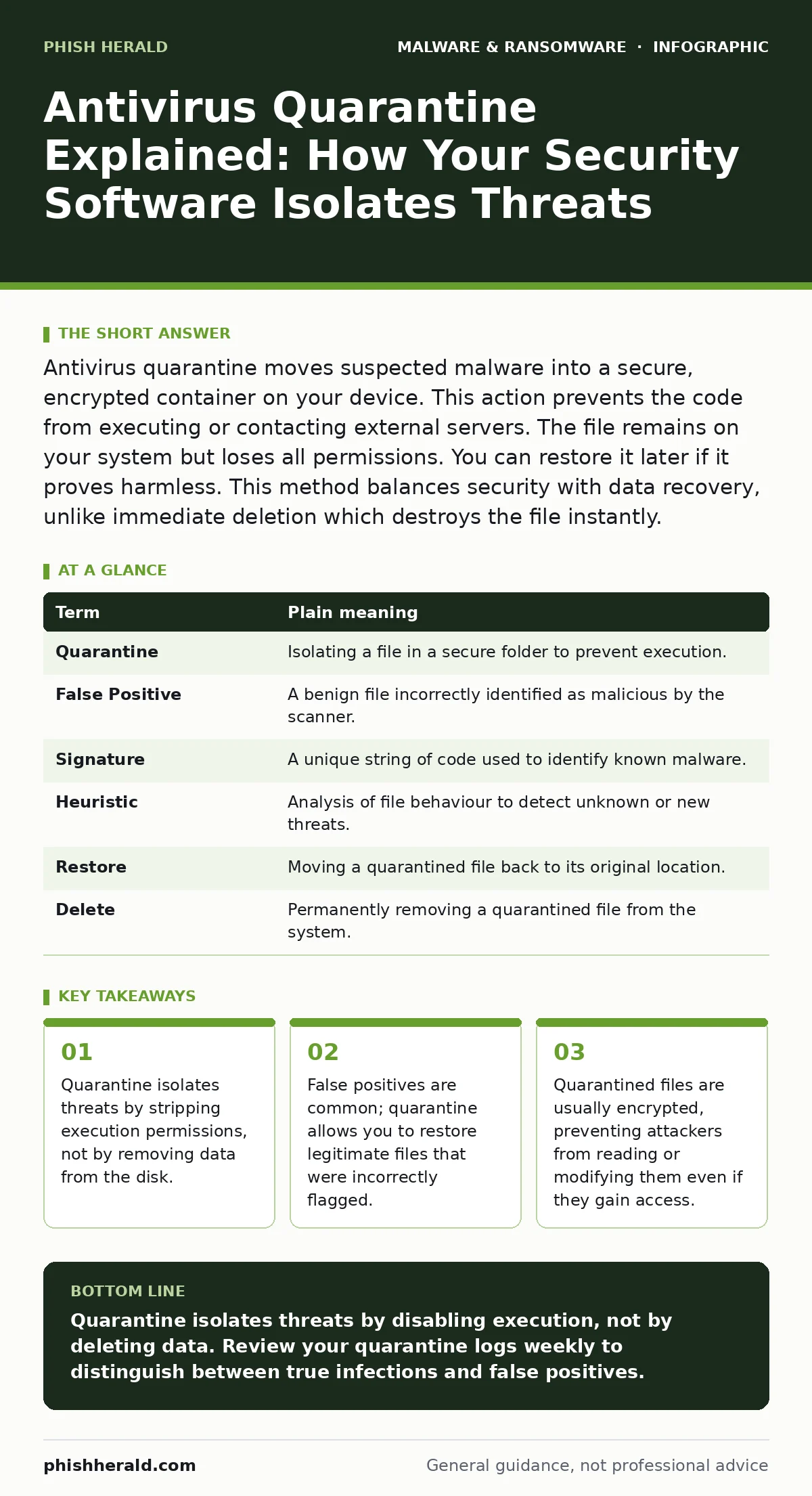
Antivirus quarantine moves suspected malware into a secure, encrypted container on your device. This action prevents the code from executing or contacting external servers. The file remains on your system but loses all permissions. You can restore it later if it proves harmless. This method balances security with data recovery, unlike immediate deletion which destroys the file instantly.
The Airport Security Analogy
Imagine an airport security checkpoint. A passenger sets off the metal detector. Security does not immediately arrest the person. They do not throw the passenger’s bag into the incinerator. Instead, they escort the individual to a private holding room. The person is isolated from the general public. They cannot board any flights. Security examines the bag closely. If it contains a prohibited item, they dispose of it. If it was a false alarm, they release the passenger. Antivirus quarantine works in this exact manner.
Understanding The Mechanism
When your security software detects a threat, it triggers the quarantine process. The software copies the suspicious file to a hidden system directory. It then renames the file to obscure its original identity. Most importantly, it strips the file of its execution permissions. The operating system can no longer run the code. The file becomes inert. It sits on your hard drive but cannot interact with other programs. This isolation stops active infections from spreading laterally across your network.
Key Terms Defined
Understanding the terminology helps you navigate security logs and settings. These definitions clarify how your protection tools interact with your files.
| Term | Plain meaning |
|---|---|
| Quarantine | Isolating a file in a secure folder to prevent execution. |
| False Positive | A benign file incorrectly identified as malicious by the scanner. |
| Signature | A unique string of code used to identify known malware. |
| Heuristic | Analysis of file behaviour to detect unknown or new threats. |
| Restore | Moving a quarantined file back to its original location. |
| Delete | Permanently removing a quarantined file from the system. |
Common Points Of Confusion
Many users assume quarantine means deletion. This is a dangerous misconception. If you restore a quarantined file, it returns to its original state. If the file was truly malicious, it may execute again. Another confusion involves timing. Quarantine happens in real-time when you open a file. It also happens during scheduled scans. You might not notice the action until you try to open a missing document. The file is not lost; it is held in custody.
The Hidden Cost Of Isolation
Quarantine consumes disk space. While individual files are small, large-scale infections can fill the quarantine folder. More critically, it creates a dependency on your ability to distinguish truth from error. If your software uses signature-based detection, it relies on known patterns. Newer threats may evade this, leading to missed detections. Conversely, overly aggressive heuristic scanning may flag legitimate business software as dangerous. This friction slows down operations. You must verify each alert. This verification requires time and expertise.
Handling False Positives
False positives occur when legitimate software resembles malicious code. This often happens with custom-built applications or scripts. If your security tool quarantines a critical business file, you must restore it. Before restoring, verify the file’s integrity. Check the hash against a known good version. Ensure the file came from a trusted source. Restoring a true positive reinfects your system. Restoring a false positive restores functionality. This decision requires confidence in your detection methods.
Try This Now
Test your quarantine process to understand its limits and capabilities. Follow these three steps to verify your current setup.
- Create a harmless test file. Write a simple text document with the word "test" in it. Rename it to something unusual like "test.exe". Note that the extension change may trigger a warning from your operating system, not necessarily your antivirus.
- Trigger a manual scan. Right-click the file and select "Scan with your antivirus". Observe if the software flags it. If it does, check the quarantine folder. Confirm the file is moved and renamed.
- Restore and verify. Restore the file from quarantine. Check if it returns to its original location and name. Ensure it is still just a text file. This confirms your restore function works correctly for future emergencies.
Beyond Basic Quarantine
Quarantine is a first line of defence, not a final solution. For advanced threats, you need deeper visibility. Endpoint detection and response (EDR) provides continuous monitoring of process behaviour. It can detect attacks that bypass signature checks. Sandboxing runs suspicious files in an isolated environment to observe their actions before they touch your main system. Combining these tools with quarantine creates a layered defence. This approach reduces the risk of persistent threats like rootkits hiding in system processes.
Managing Your Quarantine Folder
Your quarantine folder is a holding area, not an archive. It should be cleaned regularly. Files that have been quarantined for a long time are likely false positives or irrelevant. Delete them to free up space. However, keep recent quarantines for forensic analysis. If you suspect a breach, these files provide evidence. Do not mix personal data backups with security logs. Use offline backups for data recovery. Use quarantine for threat containment. Keep these functions separate to maintain clarity during an incident.
Key takeaways
- Quarantine isolates threats by stripping execution permissions, not by removing data from the disk.
- False positives are common; quarantine allows you to restore legitimate files that were incorrectly flagged.
- Quarantined files are usually encrypted, preventing attackers from reading or modifying them even if they gain access.
Quarantine isolates threats by disabling execution, not by deleting data. Review your quarantine logs weekly to distinguish between true infections and false positives.
Frequently asked questions
Does quarantine slow down my computer?
Quarantine itself is a quick file operation. However, frequent false positives can slow down workflows if you must manually restore files.
Can hackers access my quarantine folder?
Reputable antivirus software encrypts the quarantine folder. This prevents attackers from reading or extracting the malicious code for analysis.
What happens if I delete a quarantined file?
The file is permanently removed from your system. You cannot restore it. Ensure it is a threat before deleting.
Is quarantine the same as blocking?
No. Blocking prevents the file from entering the system. Quarantine isolates a file already on the disk. Blocking is proactive; quarantine is reactive.
How this guide was produced: written by the Phish Herald editorial team with AI assistance, checked against the public references listed below, and reviewed when the facts change. See our editorial policy or report an error.