Evil Twin Wi-Fi Mistakes That Expose Your Network to Theft
Trusting visual cues like SSID names is the primary failure point, as attackers replicate these identifiers with perfect fidelity to intercept unencrypted traffic.
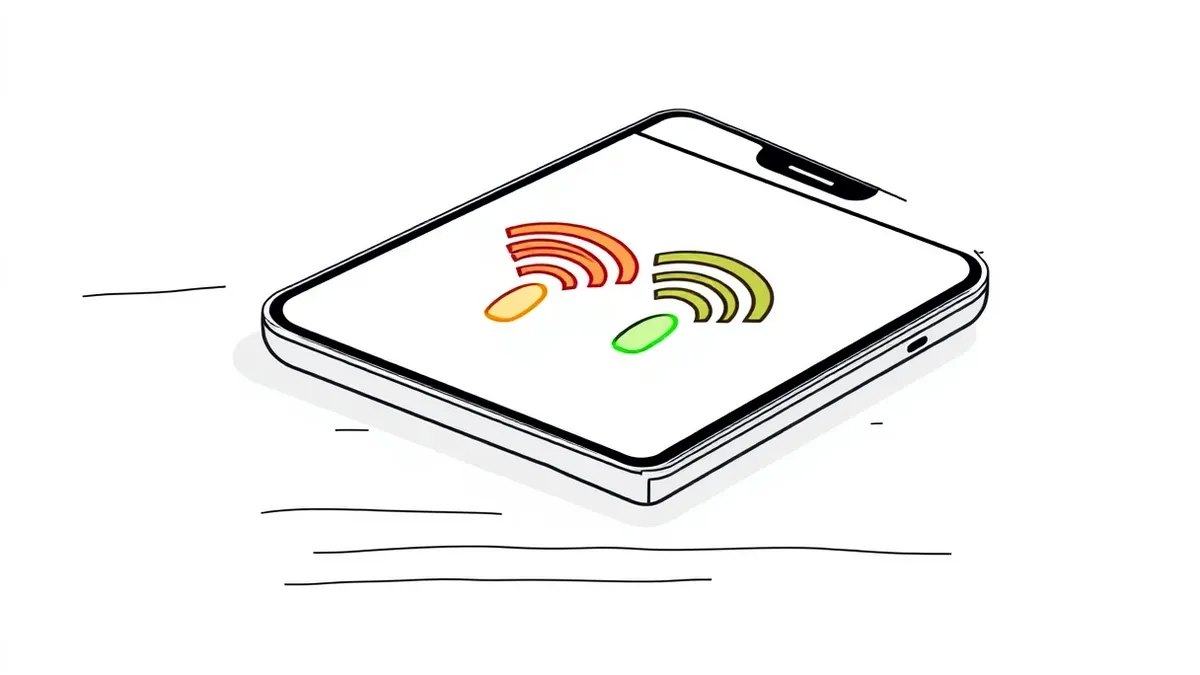
You fall for evil twin attacks when you rely on visual SSID matches, ignore certificate warnings, or connect to open networks without verification. Fix this by disabling auto-connect, verifying network ownership through out-of-band methods, and enforcing encrypted communications regardless of the Wi-Fi security type.
Mistake 1: Connecting to networks based solely on the SSID name
You assume that a Wi-Fi network displaying the correct name is the legitimate access point. Attackers clone the Service Set Identifier (SSID) of trusted networks with perfect accuracy. Your device sees the familiar name and treats the rogue access point as a valid connection target. This visual deception is the foundational layer of the evil twin attack.
Why it hurts: Your device connects to the attacker’s hardware instead of the legitimate router. All traffic passes through the attacker’s machine first. They can inspect, modify, or record every packet you send. This includes login credentials, unencrypted emails, and session tokens. The damage occurs before you even open a browser.
The fix: Disable automatic Wi-Fi connections on all corporate and personal devices. Manual connection forces you to pause and verify the network. Check for multiple networks with the same name. Legitimate infrastructure rarely broadcasts duplicate SSIDs in the same physical space. If duplicates exist, assume both are compromised until proven otherwise.
Mistake 2: Ignoring certificate warnings on HTTPS sites
You encounter a security warning because the website’s digital certificate does not match the expected domain or issuer. Many users click "Proceed Anyway" to maintain productivity. This action disables the encryption verification layer. The evil twin can now present a fake certificate that your browser accepts because you manually overrode the safety check.
Why it hurts: The attacker performs a Man-in-the-Middle (MitM) attack. They decrypt your traffic, read the contents, and re-encrypt it before sending it to the real server. You believe you are communicating securely with a bank or email provider. In reality, the attacker holds the keys to your session. This bypasses the protection provided by standard HTTPS encryption.
The fix: Treat every certificate warning as a critical failure. Never override these warnings on public or semi-public networks. If a warning appears on a trusted site, disconnect immediately. Use a password manager to store credentials securely. The password manager will refuse to autofill data on sites with invalid certificates, adding a layer of automated verification.
Mistake 3: Using open Wi-Fi networks for sensitive tasks
You connect to an open network that requires no password. You assume that modern websites use encryption, so the network security does not matter. This is a dangerous misconception. While HTTPS encrypts data in transit, open networks allow attackers to inject malicious scripts into unencrypted HTTP requests or redirect you to fake login pages.
Why it hurts: Open networks lack authentication. Any device can join and monitor traffic. Attackers use techniques like DNS spoofing to redirect your requests to malicious servers. They can also exploit vulnerabilities in your device’s operating system that are exposed when connected to untrusted networks. This increases the attack surface significantly. Endpoint protection helps mitigate some risks, but it cannot stop all network-level injections.
The fix: Avoid performing sensitive tasks on open networks entirely. Use a mobile data connection or a Virtual Private Network (VPN) if you must work remotely. A VPN creates an encrypted tunnel for all traffic, making it unreadable to the evil twin. Ensure your VPN client is configured to kill the internet connection if the tunnel drops, preventing accidental exposure.
Mistake 4: Failing to verify the network with out-of-band methods
You connect to a Wi-Fi network because it appears in your list of available connections. You do not verify its legitimacy through a secondary channel. Attackers often set up evil twins in high-traffic areas like airports or cafes. They know users are in a hurry and will not pause to verify the network’s authenticity.
Why it hurts: You connect to the attacker’s infrastructure without confirmation. The attacker can then deploy phishing pages that mimic the captive portal of the legitimate network. These pages ask for credentials or personal information. Because the page looks identical to the real one, you provide the data willingly. This combines technical exploitation with social engineering.
The fix: Verify the network name with the venue staff or through a trusted website accessed via mobile data. Ask for the exact SSID and password if required. Do not rely on signage, which can be forged. If you cannot verify the network, do not connect.
Mistake 5: Leaving device discovery and file sharing enabled
You connect to a new network with network discovery and file sharing turned on. This allows other devices on the network to see your computer. Attackers scan for devices with these features enabled. They can then attempt to access shared folders or exploit services running on your device.
Why it hurts: Your device becomes visible to the attacker. They can identify your operating system, installed software, and open ports. This information helps them tailor attacks to your specific setup. If file sharing is enabled, they may access sensitive documents directly. This bypasses the need for phishing or credential theft. The risk is higher on networks without proper segmentation.
The fix: Configure your device to treat public networks as "Public" or "Untrusted." This disables network discovery and file sharing by default. Review your firewall settings to ensure incoming connections are blocked. Use endpoint protection to monitor for unauthorized access attempts. Regular audits of network settings ensure that security policies remain consistent across all devices.
Mistake 6: Relying on WPA2 encryption for absolute security
You assume that WPA2 encryption protects you from evil twin attacks. While WPA2 secures the link between your device and the access point, it does not verify the identity of the access point. An attacker can set up a rogue WPA2 network with a guessed or common password. Your device will connect if it has the password stored.
Why it hurts: The attacker controls the access point. They can decrypt traffic if they know the password. Even if they do not, they can still perform downgrade attacks or force re-authentication to capture the handshake. This allows them to crack the password offline. Once cracked, they have full access to your traffic. WPA2 does not prevent the initial connection to the rogue device.
The fix: Use WPA3 where available, as it provides stronger authentication and encryption. Enable Enterprise mode (WPA2-Enterprise or WPA3-Enterprise) for corporate networks. This requires individual user authentication, making it much harder for attackers to clone the network. Ensure your devices support the latest security standards. Legacy devices may need to be replaced or isolated.
Mistake 7: Not monitoring for duplicate SSIDs in scans
You connect to the first network that matches the expected name. You do not check for other networks with the same identifier. Attackers often broadcast the same SSID with a stronger signal to attract connections. Your device may automatically switch to the stronger signal, even if it is the rogue one.
Why it hurts: Your device connects to the attacker’s stronger signal. This is known as a beacon flooding attack. The attacker’s signal drowns out the legitimate one. You lose connectivity to the real network and gain connectivity to the trap. This happens silently, without any warning. You remain unaware of the switch until data is stolen.
The fix: Use Wi-Fi scanning tools to check for duplicate SSIDs. Look for unusual signal strengths or MAC addresses. If you see duplicates, investigate before connecting. Block known rogue MAC addresses in your device settings. Regularly update your Wi-Fi channel settings to reduce interference. This proactive approach reduces the risk of accidental connection to evil twins.
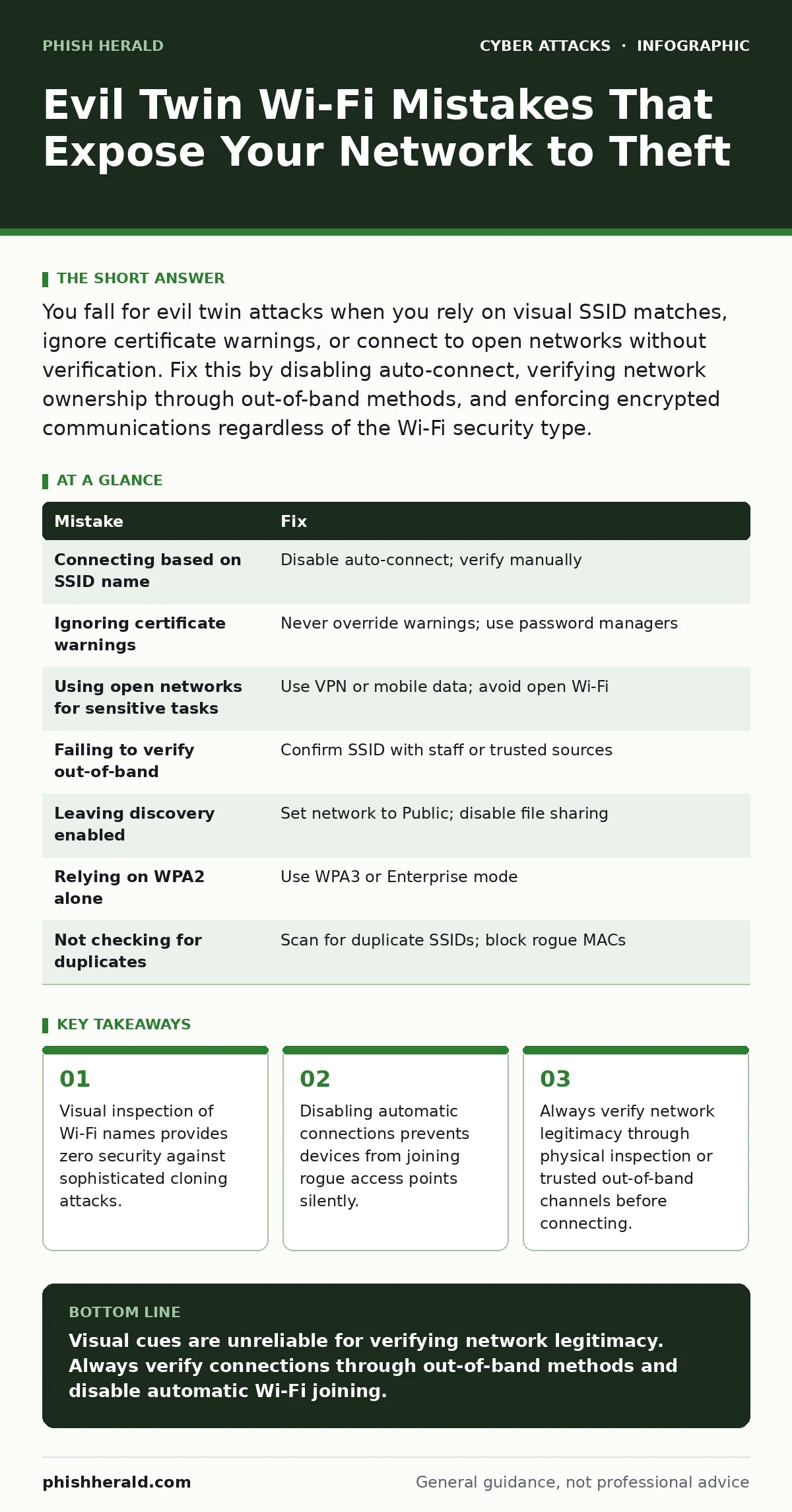
| Mistake | Fix |
|---|---|
| Connecting based on SSID name | Disable auto-connect; verify manually |
| Ignoring certificate warnings | Never override warnings; use password managers |
| Using open networks for sensitive tasks | Use VPN or mobile data; avoid open Wi-Fi |
| Failing to verify out-of-band | Confirm SSID with staff or trusted sources |
| Leaving discovery enabled | Set network to Public; disable file sharing |
| Relying on WPA2 alone | Use WPA3 or Enterprise mode |
| Not checking for duplicates | Scan for duplicate SSIDs; block rogue MACs |
Key takeaways
- Visual inspection of Wi-Fi names provides zero security against sophisticated cloning attacks.
- Disabling automatic connections prevents devices from joining rogue access points silently.
- Always verify network legitimacy through physical inspection or trusted out-of-band channels before connecting.
Visual cues are unreliable for verifying network legitimacy. Always verify connections through out-of-band methods and disable automatic Wi-Fi joining.
Frequently asked questions
How do I know if my Wi-Fi is an evil twin?
Check for duplicate SSIDs, unusual signal strengths, and certificate warnings. Verify the network name with the venue staff or through a trusted mobile data connection.
Can a VPN stop an evil twin attack?
A VPN encrypts your traffic, preventing the attacker from reading it. However, it does not stop the attacker from redirecting you to fake login pages or injecting scripts.
Should I turn off Wi-Fi when not in use?
Yes, turning off Wi-Fi prevents automatic connections to rogue networks. It also reduces the attack surface by making your device invisible to nearby scanners.
What is the difference between an evil twin and a rogue access point?
An evil twin mimics a legitimate network to trick users. A rogue access point is an unauthorized device installed on a network, often by an insider. Both pose significant security risks.
How this guide was produced: written by the Phish Herald editorial team with AI assistance, checked against the public references listed below, and reviewed when the facts change. See our editorial policy or report an error.